





• Saltar para a navegação principal
  • Saltar para o conteúdo principal
  • Saltar para o rodapé

Onyx Graphics - Software RIP para impressão de grande formato

Apoio


dashicons-linkedin

dashicons-facebook-alt

dashicons-instagram

Transferências▼Portal do parceiro▼
  • Produtos
  • Ensaios gratuitos
  • Página inicial do portal
  • Marketing
  • Kits de lançamento
  • Promoções
  • Guia de estilo
  • Imagens de amostra
  • Atualização da demonstração
Portuguese
Portuguese
English Spain France Chinese Japanese German Korean
A simple magnifying glass icon on a white background, commonly representing the search function, perfect for use in cutting or printing workflows with Onyx Graphics.
  • Produtos
        • Versão mais recente
        • ONYX 25
          Obter a versão mais recente
          do seu software RIP

        • Produtos RIP
        • ONYX Thrive
          Solução de fluxo de trabalho e RIP de rede escalável

          ONYX PosterShop
          RIP fácil e potente com
          controlo avançado da cor

          ONYX RIPCenter
          RIP simplificado com
          ferramentas de cor intuitivas

          ONYX Go
          Assinatura de software RIP

        • Soluções para empresas
        • ONYX Align
          Gestão de centros de impressão
          software

          ONYX Hub
          Sistema de controlo analítico

        • Ferramentas e automatizações
        • ONYX Trufit
          Com base na forma, inteligente
          software de encaixe

          ONYX Sync
          Software completo
          sistema de conetividade

        • Apoio
        • ONYX Advantage
          Suporte e actualizações para
          proteger o seu investimento

        • Produtos ONYX

          Explore o Ecossistema ONYX, com todos os produtos a trabalharem em conjunto para lhe proporcionar uma loja de impressão totalmente suportada.

          Saiba mais

  • Aplicações
    • Sinais e gráficos
    • DTF
    • Têxtil
    • Embrulho
    • Automatização
    • Corte
    • Gestão de cores
    • Sustentabilidade
  • Loja
  • Obter formação
    • Comprar cursos
    • Zona de aprendizagem ONYX
  • Sobre nós
    • Empresa
    • Equipas regionais
    • Blogue
    • Encontrar um revendedor
  • Recursos
    • Compatibilidade
    • FAQ
    • ONYX SupportCenter
    • Gerir subscrições
    • Centro de pagamento
    • Contactar-nos
    • Bibliotecas ONYX Quick Set
    • Actualizações e Patches
    • Produtos
    • Teste gratuito

The following guide walks through verifying, registering, installing, and activating an ONYX soft-license. ONYX soft-licenses do not require a hardware key to run. Included in this guide are steps to obtain a soft-license trial product, and how to get product support. Thank you for choosing ONYX software for your business.

1. Email instructions:

  • You will receive an email from your Reseller at the time of purchase.
  • Click on the Register button to be taken to the ONYX License Portal.
  • You will need the License Key Code to register and activate your product.
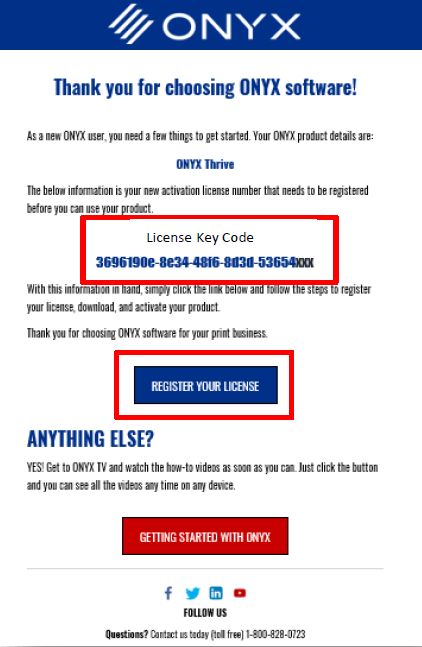
Screenshot of an ONYX software activation page from Onyx Graphics, displaying a license key code, a "REGISTER YOUR LICENSE" button, and instructions for getting started with printing and cutting.

2. Verifying a license in the license portal.

  • Once at the ONYX License Portal, you must enter the License Key in the License Key box.
  • You also need to ensure any extra spaces added from a copy/paste are removed before verifying the license.
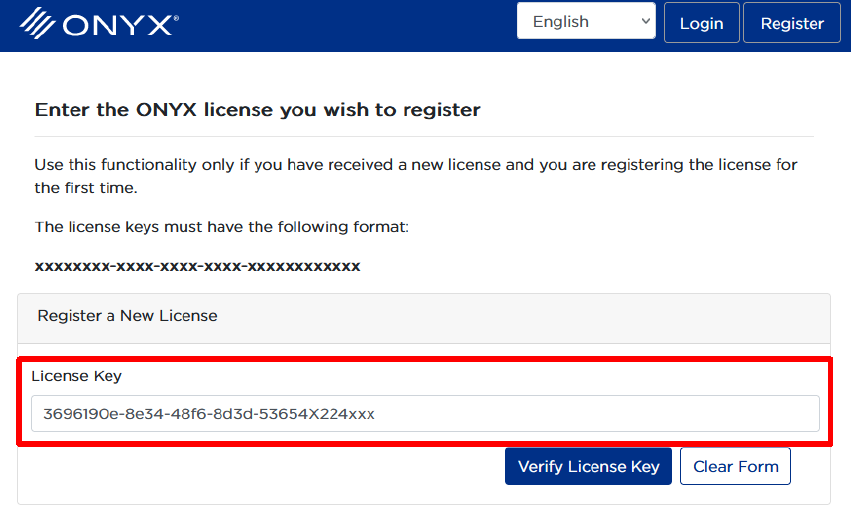
Screenshot of the ONYX license registration page from Onyx Graphics RIP Software, with a sample license key entered in the input field and the "Verify License Key" button below—ideal for cutting-edge print workflows.

  • Once at the License is added and any additional spaces are removed, you can verify the License Key.
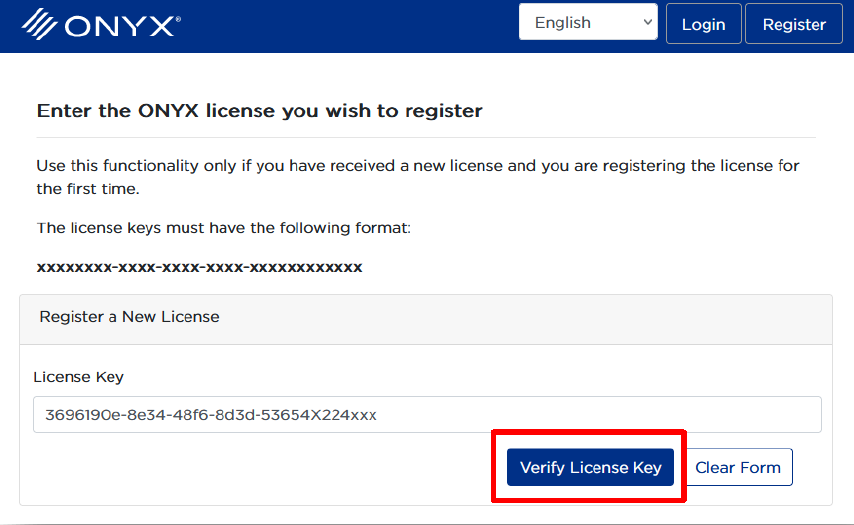
Screenshot of the ONYX license registration page from Onyx Graphics, showing a filled license key field and the "Verify License Key" button in red—essential for activating your RIP Software.

  • Once the license shows as verified, click “continue” to then register the license to your account.
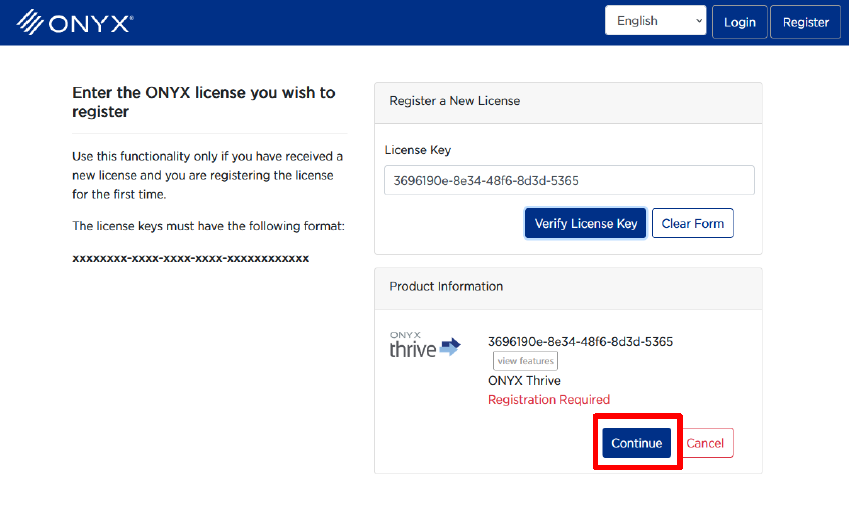
Screenshot of the ONYX Graphics software license registration page, showing a license key entered and the "Continue" button highlighted in red for activating your RIP Software.

3. An example workflow:

  • A new account will need to be created to register the license.
  • If you already have an account, you must login to register the license.
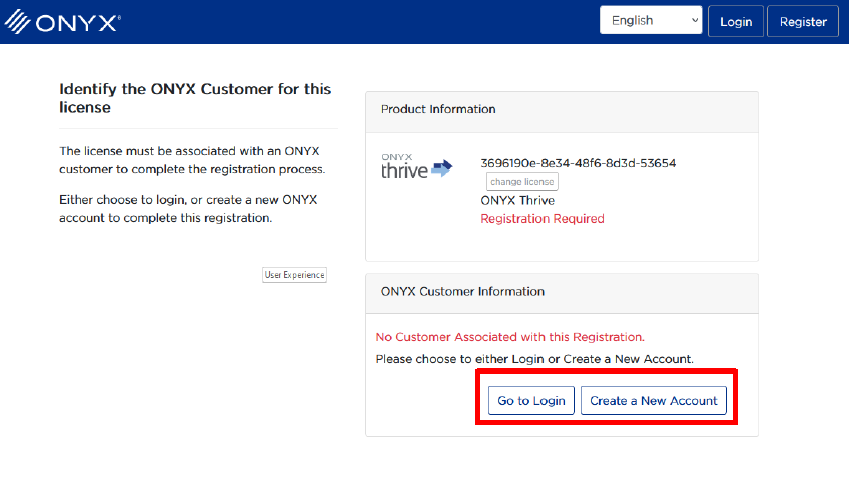
Screenshot of the ONYX license registration page by Onyx Graphics, showing options to log in or create a new account, with prompts to identify the customer for the RIP Software license and cutting features.

4. New account creation:

  • To create an account, insert the email address you want to be associated with ONYX products.
  • A verification code will be sent to your email to validate access.
  • Insert the code at the next screen and continue with your user information to register.
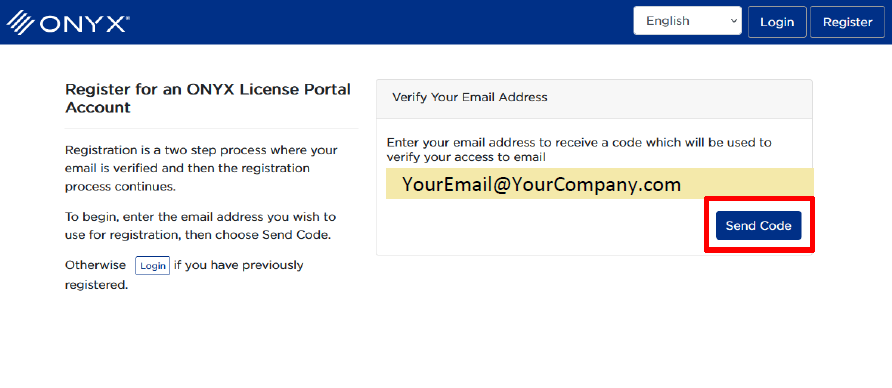
Screenshot of the ONYX License Portal registration page, where users interested in Onyx Graphics RIP Software for printing are prompted to enter and verify their email address by clicking the "Send Code" button.

5. Registering a license: 

  • Once logged in, you will see your name in the top right and have the option to register the verified license by clicking “register,” then “continue”.
  • You can check the name, email, and license information before completing the registration process.
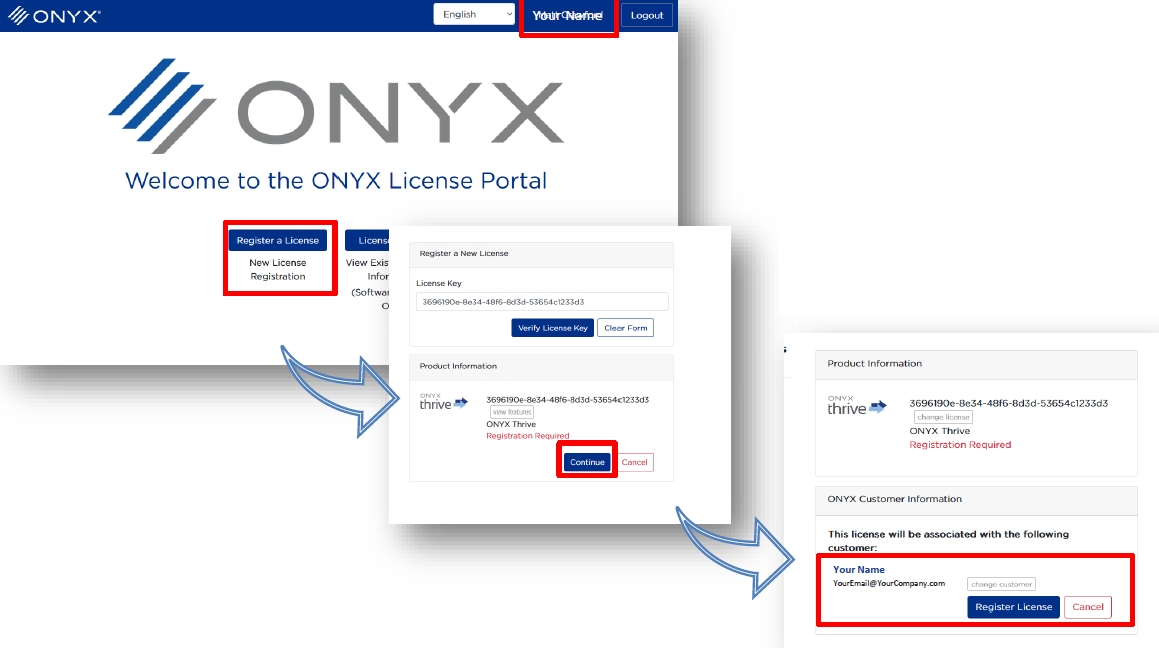
Three screenshots illustrate the ONYX License Portal process from Onyx Graphics: logging in, entering a license key, clicking Continue, and registering the license. Key steps for printing and cutting workflows are highlighted in red.

  • The registration process is now complete.
  • The ONYX License Portal will show a download link to start using ONYX Software.
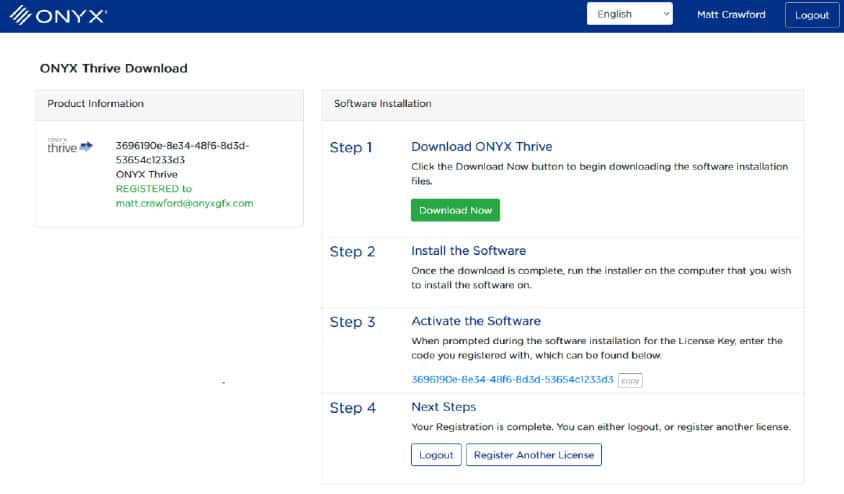
Screenshot of the ONYX Thrive RIP Software Download page showing product information, software download steps, and options for printing, cutting, logging out, or registering another license.

** Steps 5-6 only apply to trial soft-licenses, if you do not have a trial, please skip to step 8 **

6. Obtaining a trial:

  • Trial products are provided at no charge and are available from the Onyx Graphics website.
  • For ONYX Thrive or ONYX PosterShop, pick the desired product and add it to the shopping cart.
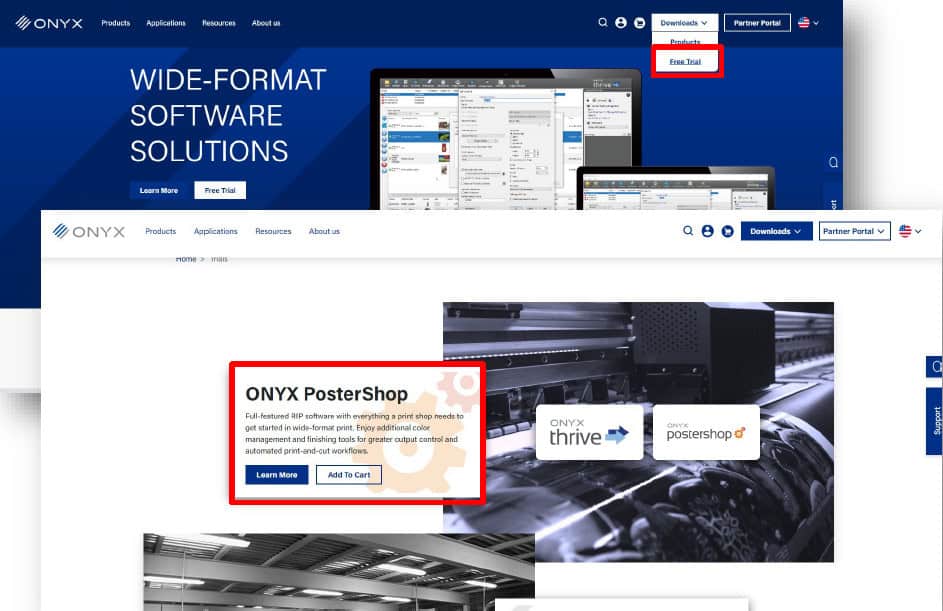
Screenshot of the ONYX website by Onyx Graphics, displaying navigation for downloads, partner portal, free trial, and a highlighted ONYX PosterShop software section with an “Add to Cart” button—ideal for your printing and cutting workflow.

7. The checkout process:

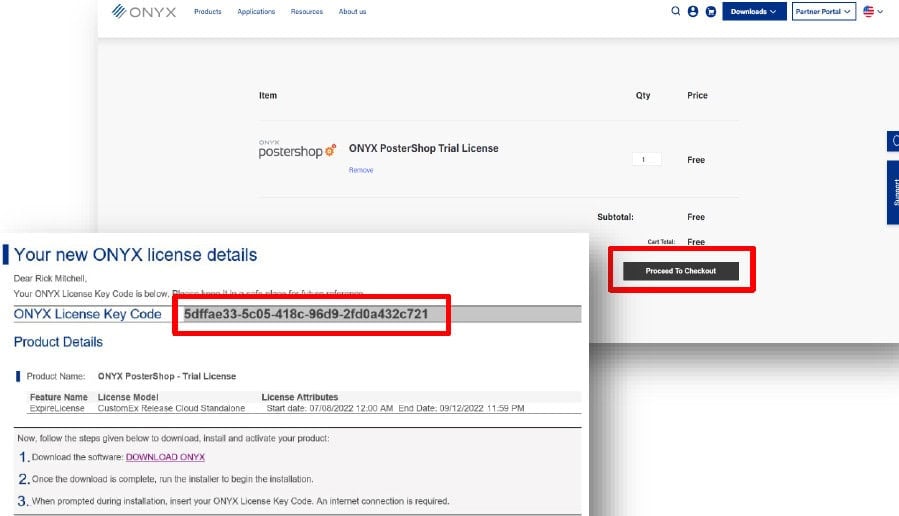
  • Proceed to the checkout and fill in your customer information as requested.
  • Complete the checkout process to obtain a free trial of ONYX software.
  • A confirmation email with download links and an Activation License Key will be sent to the email address used at checkout.
A support contact form is displayed on a website for printing services, asking for name, email, phone, company, subject, and message regarding RIP Software or cutting issues, with a "Submit" button at the bottom.

8. Install and activate:

  • You must first download the software either from the order confirmation email or from the Onyx Graphics website.
  • Once the product is downloaded, the installer can be launched by clicking the product.exe file and following the prompts to begin the installation.
  • Hardware keys should be removed from the computer at installation.
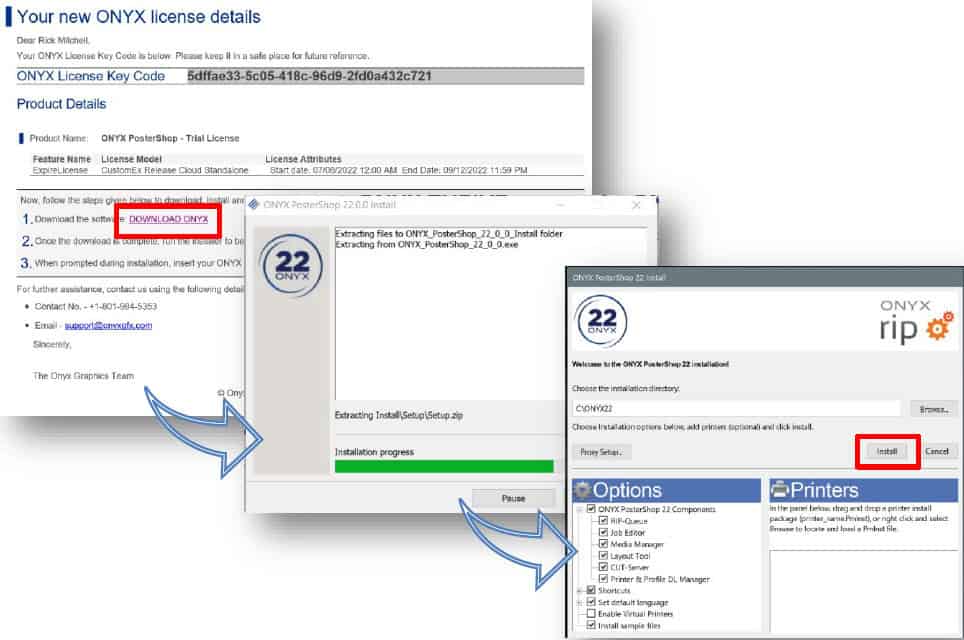
  • Once ONYX is installed, you will see a screen that prompts license activation.
  • At the activation screen, input the License Key Code received in the order confirmation email.
  • Select “Activate License” for installation to continue and finish.
  • The ONYX trial can now be launched and used.
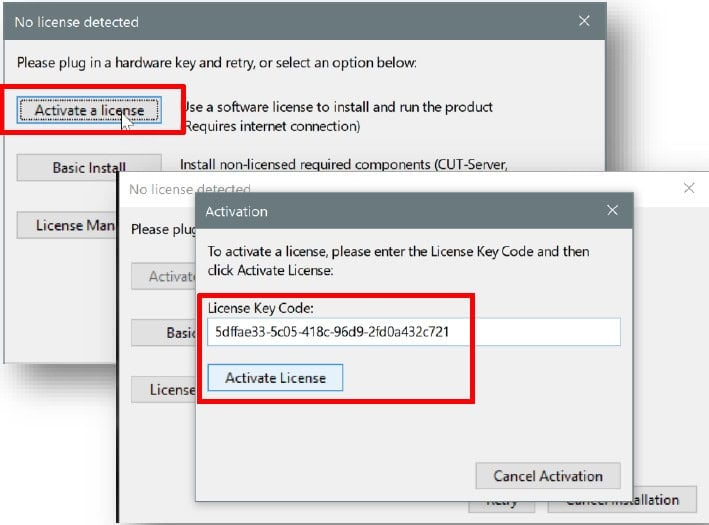
9. Managing a soft-license:

  • The License Manager shows product information.
  • The License manager is used to update a license for new product features, move a license between computers, or upgrade a trial to a full ONYX product at the end of the trial period.
  • To move a soft-license between computers, users can deactivate the license on one computer, then activate the same license on another computer in the License Manager.
  • For ONYX Thrive, the License Manager provides an additional option to choose which network license server to connect to.
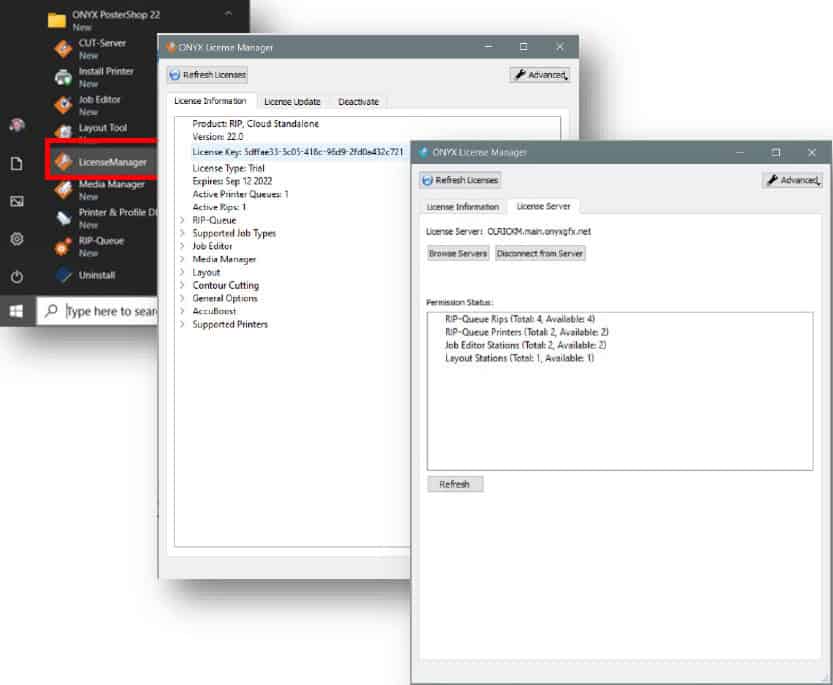
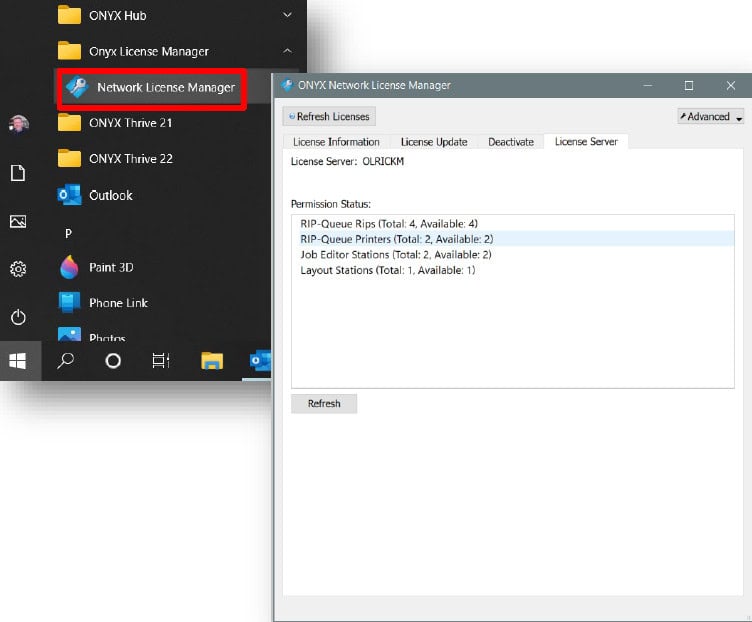
  • ONYX Thrive also includes a Network License Manager to manage connections to various workstations.
  • The License Manager on an individual station can connect to the Network License Manager.
  • The Network License Manager is where product information, product updates, and product upgrades are managed.
  • The Network License Manager also lists the permissions on the license, including RIPs, Printers, and Job Editors.
10. Product support for soft-licenses:

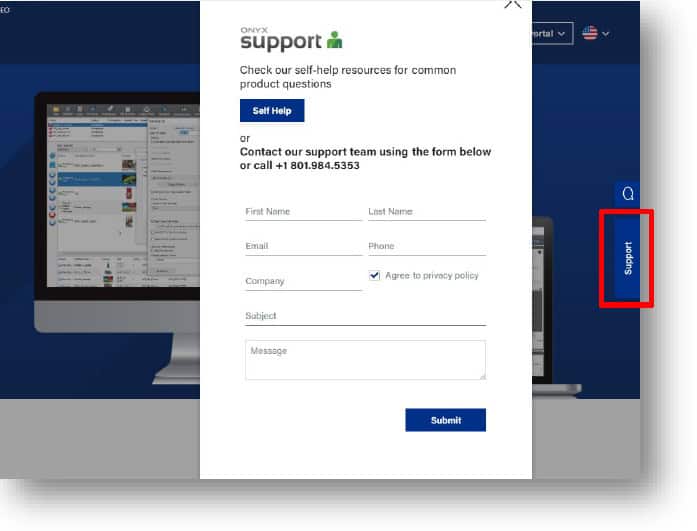
  • Technical support can also be reached at the Onyx Graphics website from the support button as shown.
  • Technical Support phone hours are:
    • Monday –Thursday 8am –4pm (MT)
    • Friday 8am –3pm (MT)
  • Regional support is also offered via email:
    • Americas: support@onyxgfx.com
    • Europe (EMEA) emeasupport@onyxgf.com
    • Asia Pacific asiasales@onyxgfx.com

Onyx Graphics logo featuring three diagonal blue lines to the left of the word "ONYX" in light gray text on a light background, representing expertise in printing and RIP software solutions.

Onyx Graphics, Inc.
6915 South High Tech Drive,
Salt Lake City, UT 84047

+1 801.568.9900
sales@onyxgfx.com

Portal do revendedor
Política de privacidade
Termos de utilização
Garantia limitada

Acessibilidade da Web
ISL
Centro de pagamento
Contactar-nos


dashicons-linkedin

dashicons-facebook-alt

dashicons-instagram

Este sítio está protegido pelo reCAPTCHA e pelo Política de privacidade da Google e Termos do serviço aplicar

© 2026 Onyx Graphics, Inc. Todos os direitos reservados. Desenhado por TinyFrog Technologies.

Utilizamos cookies no nosso sítio Web para lhe proporcionar a experiência mais relevante, recordando as suas preferências e visitas repetidas. Ao clicar em "Aceitar", está a consentir a utilização de TODOS os cookies.
Não vender as minhas informações pessoais.
Definições de cookiesAceitar
Gerir o consentimento

Visão geral da privacidade

Este sítio Web utiliza cookies para melhorar a sua experiência enquanto navega no sítio Web. Destes, os cookies que são categorizados como necessários são armazenados no seu browser, uma vez que são essenciais para o funcionamento das funcionalidades básicas do sítio Web. Também utilizamos cookies de terceiros que nos ajudam a analisar e a compreender a forma como o utilizador utiliza este sítio Web. Estes cookies serão armazenados no seu browser apenas com o seu consentimento. O utilizador também tem a opção de recusar estes cookies. Mas a exclusão de alguns destes cookies pode afetar a sua experiência de navegação.
Necessário
Sempre activado
Os cookies necessários são absolutamente essenciais para que o sítio Web funcione corretamente. Estes cookies asseguram as funcionalidades básicas e as caraterísticas de segurança do sítio Web, de forma anónima.
BiscoitoDuraçãoDescrição
cookielawinfo-checkbox-analytics11 mesesEste cookie é definido pelo plugin GDPR Cookie Consent. O cookie é utilizado para armazenar o consentimento do utilizador para os cookies na categoria "Analytics".
cookielawinfo-checkbox-functional11 mesesO cookie é definido pelo consentimento do cookie GDPR para registar o consentimento do utilizador para os cookies na categoria "Funcional".
cookielawinfo-checkbox-necessary11 mesesEste cookie é definido pelo plugin GDPR Cookie Consent. Os cookies são utilizados para armazenar o consentimento do utilizador para os cookies na categoria "Necessário".
cookielawinfo-checkbox-others11 mesesEste cookie é definido pelo plug-in GDPR Cookie Consent. O cookie é utilizado para armazenar o consentimento do utilizador para os cookies na categoria "Outros".
cookielawinfo-checkbox-performance11 mesesEste cookie é definido pelo plugin GDPR Cookie Consent. O cookie é utilizado para armazenar o consentimento do utilizador para os cookies na categoria "Desempenho".
política_de_cookies_visualizados11 mesesO cookie é definido pelo plug-in GDPR Cookie Consent e é utilizado para armazenar se o utilizador consentiu ou não na utilização de cookies. Não armazena quaisquer dados pessoais.
Funcional
Os cookies funcionais ajudam a realizar determinadas funcionalidades, como a partilha do conteúdo do sítio Web em plataformas de redes sociais, a recolha de feedbacks e outras caraterísticas de terceiros.
Desempenho
Os cookies de desempenho são utilizados para compreender e analisar os principais índices de desempenho do sítio Web, o que ajuda a proporcionar uma melhor experiência de utilização aos visitantes.
Analítica
Os cookies analíticos são utilizados para compreender a forma como os visitantes interagem com o sítio Web. Estes cookies ajudam a fornecer informações sobre métricas como o número de visitantes, a taxa de rejeição, a origem do tráfego, etc.
Publicidade
Os cookies de publicidade são utilizados para fornecer aos visitantes anúncios e campanhas de marketing relevantes. Estes cookies rastreiam os visitantes em vários sítios Web e recolhem informações para fornecer anúncios personalizados.
Outros
Outros cookies não categorizados são aqueles que estão a ser analisados e que ainda não foram classificados numa categoria.
GUARDAR E ACEITAR

Sincronização de informações de compras


Pedir uma demonstração

Para saber mais sobre o ONYX Align e como este pode beneficiar o seu negócio de impressão,
utilize o formulário abaixo e um representante da ONYX irá
contactá-lo para agendar uma demonstração


Obter ONYX RIPCenter

Para solicitar uma avaliação ou comprar, basta preencher o formulário
e um representante da ONYX entrará em contacto consigo
sobre as necessidades da sua empresa.


Consulte os nossos recursos de autoajuda para questões comuns sobre produtos

ONYX SupportCenter


Preencha o formulário para nos informar se não conseguir encontrar o fabricante ou o dispositivo que procura.