





• 主要ナビゲーションへスキップ
  • 本文へスキップ
  • フッターへスキップ

Onyx Graphics - ワイドフォーマット印刷用RIPソフトウェア

サポート


ダッシュコン

ダッシュ・フェイスブック・アルト

ダッシュアイコン-インスタグラム

ダウンロード▼パートナーポータル▼
  • 製品紹介
  • 無料トライアル
  • ポータルホーム
  • マーケティング
  • ローンチ・キット
  • プロモーション
  • スタイルガイド
  • サンプル画像
  • デモ・アップデート
Japanese
Japanese
English Spain France Chinese German Korean Portuguese
A simple magnifying glass icon on a white background, commonly representing the search function, perfect for use in cutting or printing workflows with Onyx Graphics.
  • 製品紹介
        • 最新バージョン
        • ONYX 25
          最新バージョンを入手する
          RIPソフトウェアの

        • RIP製品
        • ONYX Thrive
          スケーラブルなネットワークRIPおよびワークフロー・ソリューション

          ONYX PosterShop
          簡単でパワフルなRIP
          高度なカラーコントロール

          ONYX RIPCenter
          合理化されたRIP
          直感的なカラーツール

          ONYX Go
          サブスクリプションRIPソフトウェア

        • ビジネスソリューション
        • ONYX Align
          印刷工場管理
          ソフトウェア

          ONYX Hub
          アナリティクス・トラッキング・システム

        • ツール&オートメーション
        • ONYX Trufit
          形状ベース、スマート
          ネスティングソフトウェア

          ONYX Sync
          完全なソフトウェア
          コネクティビティシステム

        • サポート
        • ONYX Advantage
          のサポートとアップデート
          投資を守る

        • オニキス製品

          ONYXエコシステムをご覧ください。すべての製品が連携し、完全にサポートされたプリントショップを提供します。.

          さらに詳しく

  • アプリケーション
    • サイン&グラフィック
    • DTF
    • テキスタイル
    • ラッピング
    • オートメーション
    • カッティング
    • カラーマネジメント
    • 持続可能性
  • 店舗
  • トレーニングを受ける
    • コース購入
    • ONYXラーニングゾーン
  • 会社概要
    • 会社概要
    • 地域チーム
    • ブログ
    • リセラーを探す
  • リソース
    • 互換性
    • よくあるご質問
    • ONYX サポートセンター
    • サブスクリプションの管理
    • 支払センター
    • お問い合わせ
    • ONYXクイックセットライブラリ
    • アップデートとパッチ
    • 製品紹介
    • 無料トライアル

The following guide walks through verifying, registering, installing, and activating an ONYX soft-license. ONYX soft-licenses do not require a hardware key to run. Included in this guide are steps to obtain a soft-license trial product, and how to get product support. Thank you for choosing ONYX software for your business.

1. Email instructions:

  • You will receive an email from your Reseller at the time of purchase.
  • Click on the Register button to be taken to the ONYX License Portal.
  • You will need the License Key Code to register and activate your product.
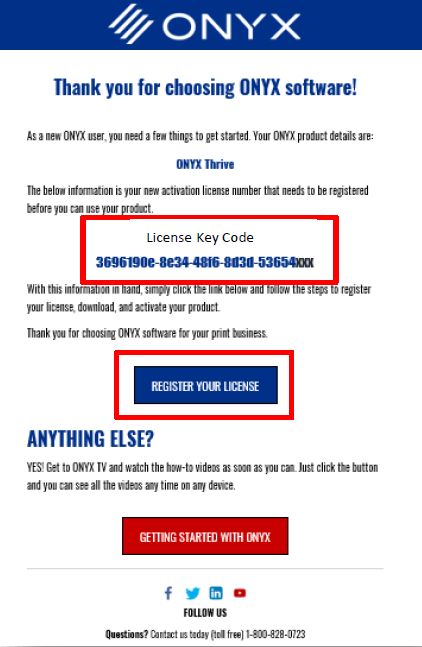
Screenshot of an ONYX software activation page from Onyx Graphics, displaying a license key code, a "REGISTER YOUR LICENSE" button, and instructions for getting started with printing and cutting.

2. Verifying a license in the license portal.

  • Once at the ONYX License Portal, you must enter the License Key in the License Key box.
  • You also need to ensure any extra spaces added from a copy/paste are removed before verifying the license.
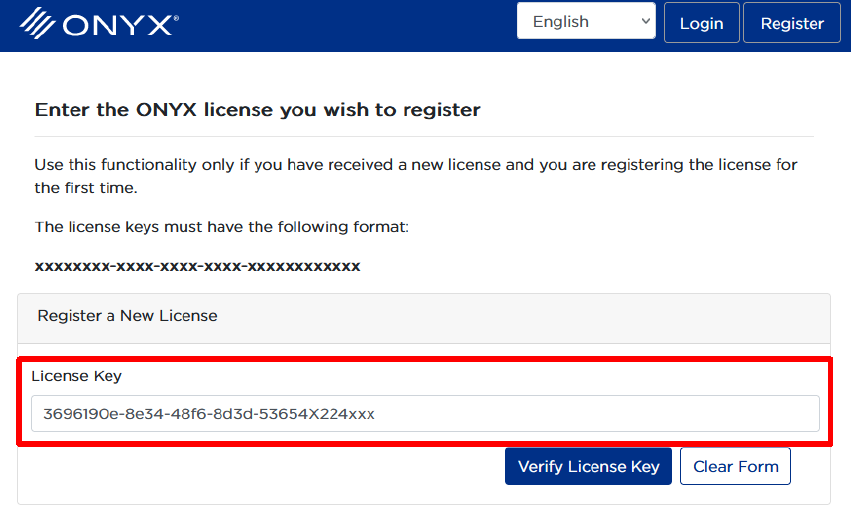
Screenshot of the ONYX license registration page from Onyx Graphics RIP Software, with a sample license key entered in the input field and the "Verify License Key" button below—ideal for cutting-edge print workflows.

  • Once at the License is added and any additional spaces are removed, you can verify the License Key.
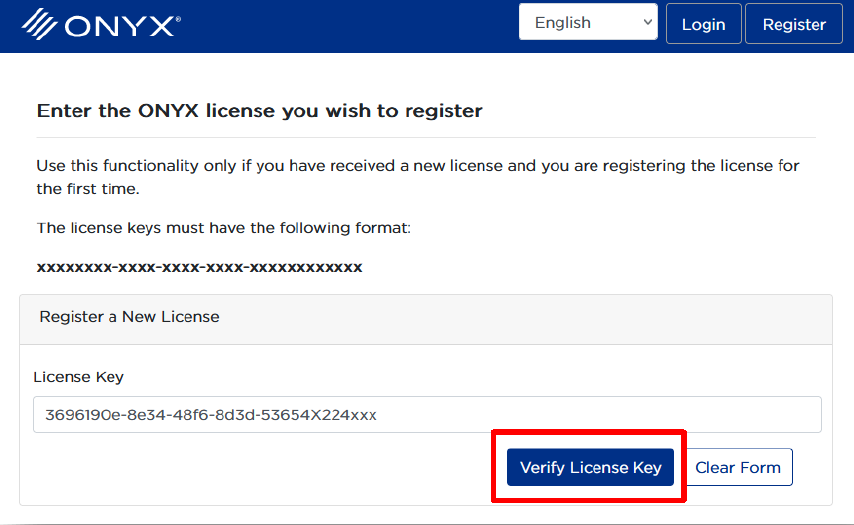
Screenshot of the ONYX license registration page from Onyx Graphics, showing a filled license key field and the "Verify License Key" button in red—essential for activating your RIP Software.

  • Once the license shows as verified, click “continue” to then register the license to your account.
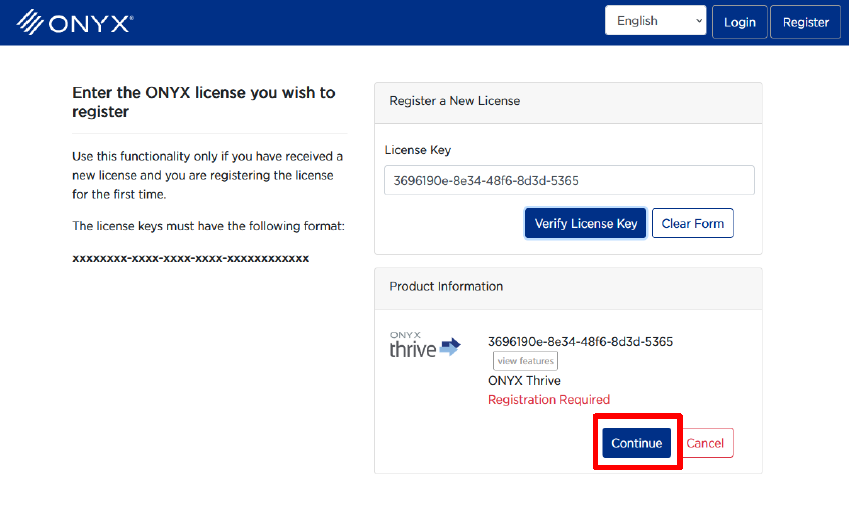
Screenshot of the ONYX Graphics software license registration page, showing a license key entered and the "Continue" button highlighted in red for activating your RIP Software.

3. An example workflow:

  • A new account will need to be created to register the license.
  • If you already have an account, you must login to register the license.
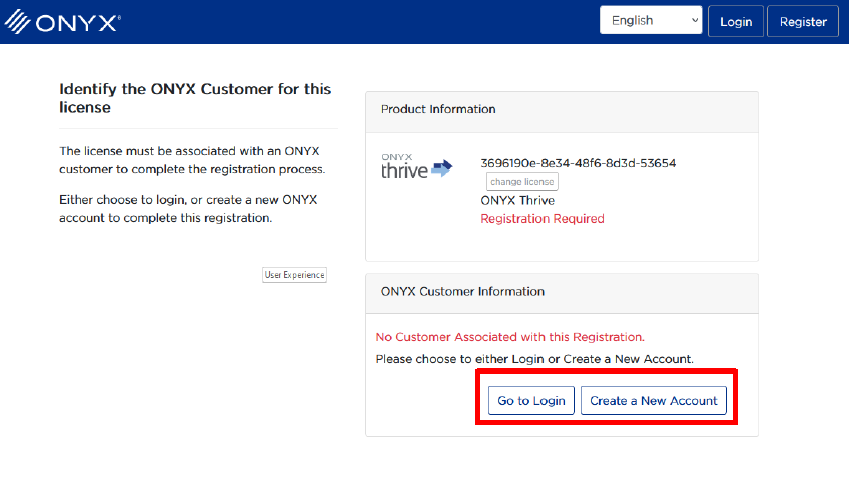
Screenshot of the ONYX license registration page by Onyx Graphics, showing options to log in or create a new account, with prompts to identify the customer for the RIP Software license and cutting features.

4. New account creation:

  • To create an account, insert the email address you want to be associated with ONYX products.
  • A verification code will be sent to your email to validate access.
  • Insert the code at the next screen and continue with your user information to register.
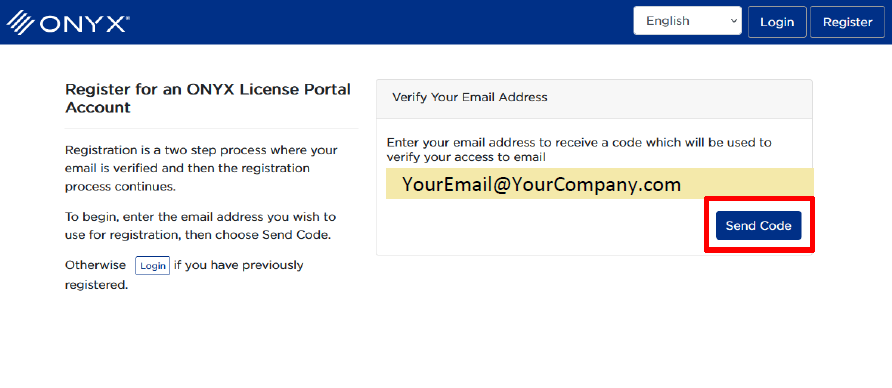
Screenshot of the ONYX License Portal registration page, where users interested in Onyx Graphics RIP Software for printing are prompted to enter and verify their email address by clicking the "Send Code" button.

5. Registering a license: 

  • Once logged in, you will see your name in the top right and have the option to register the verified license by clicking “register,” then “continue”.
  • You can check the name, email, and license information before completing the registration process.
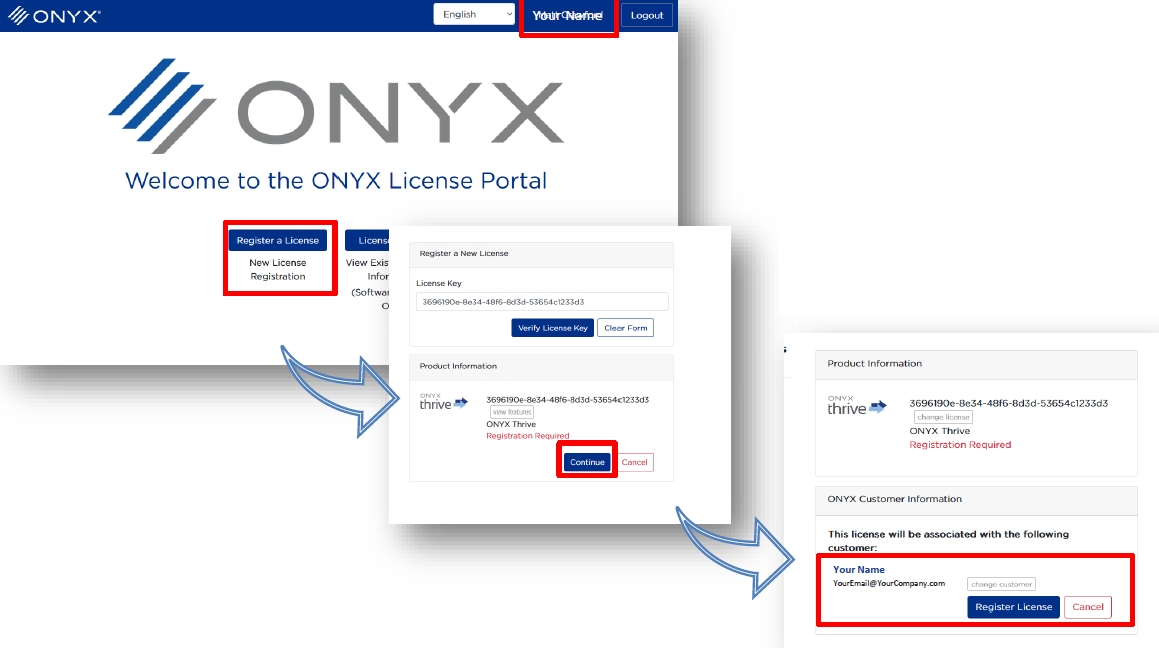
Three screenshots illustrate the ONYX License Portal process from Onyx Graphics: logging in, entering a license key, clicking Continue, and registering the license. Key steps for printing and cutting workflows are highlighted in red.

  • The registration process is now complete.
  • The ONYX License Portal will show a download link to start using ONYX Software.
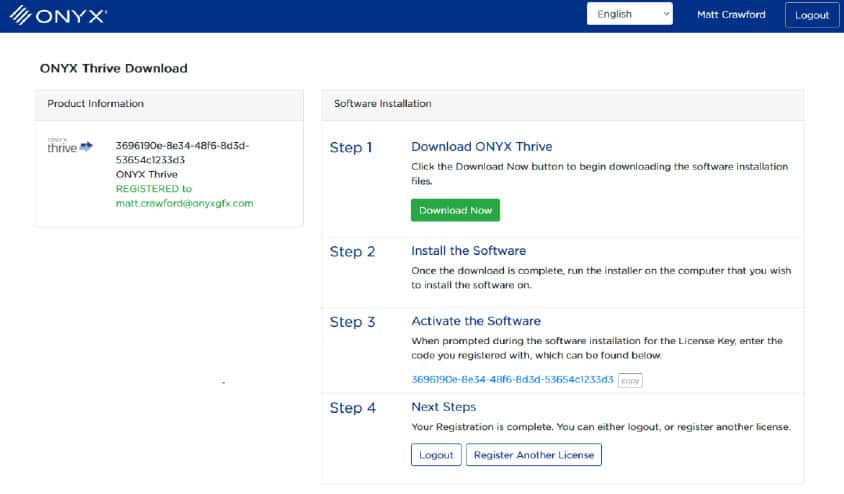
Screenshot of the ONYX Thrive RIP Software Download page showing product information, software download steps, and options for printing, cutting, logging out, or registering another license.

** Steps 5-6 only apply to trial soft-licenses, if you do not have a trial, please skip to step 8 **

6. Obtaining a trial:

  • Trial products are provided at no charge and are available from the Onyx Graphics website.
  • For ONYX Thrive or ONYX PosterShop, pick the desired product and add it to the shopping cart.
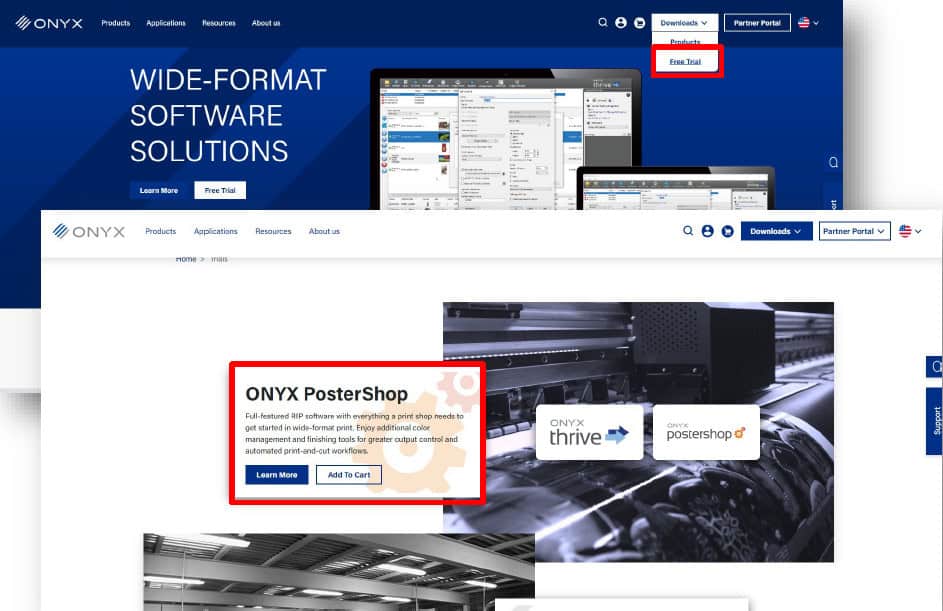
Screenshot of the ONYX website by Onyx Graphics, displaying navigation for downloads, partner portal, free trial, and a highlighted ONYX PosterShop software section with an “Add to Cart” button—ideal for your printing and cutting workflow.

7. The checkout process:

  • Proceed to the checkout and fill in your customer information as requested.
  • Complete the checkout process to obtain a free trial of ONYX software.
  • A confirmation email with download links and an Activation License Key will be sent to the email address used at checkout.
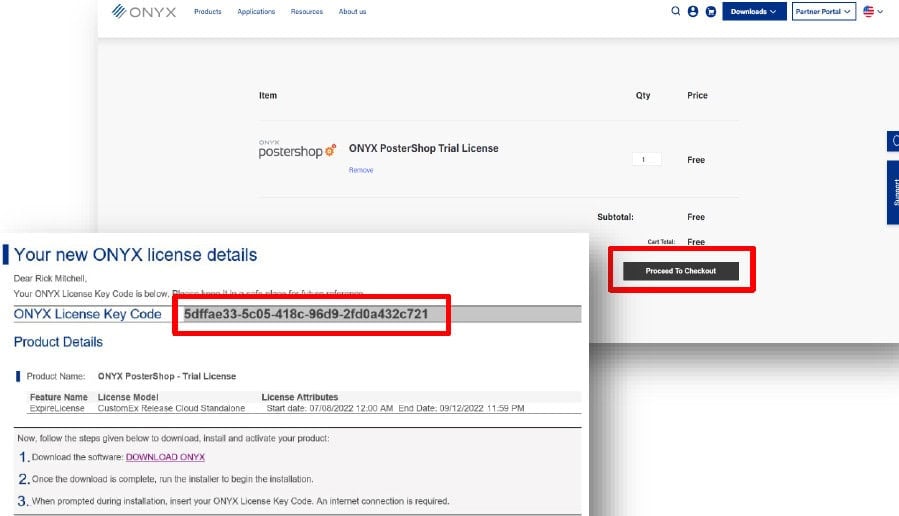
A support contact form is displayed on a website for printing services, asking for name, email, phone, company, subject, and message regarding RIP Software or cutting issues, with a "Submit" button at the bottom.

8. Install and activate:

  • You must first download the software either from the order confirmation email or from the Onyx Graphics website.
  • Once the product is downloaded, the installer can be launched by clicking the product.exe file and following the prompts to begin the installation.
  • Hardware keys should be removed from the computer at installation.
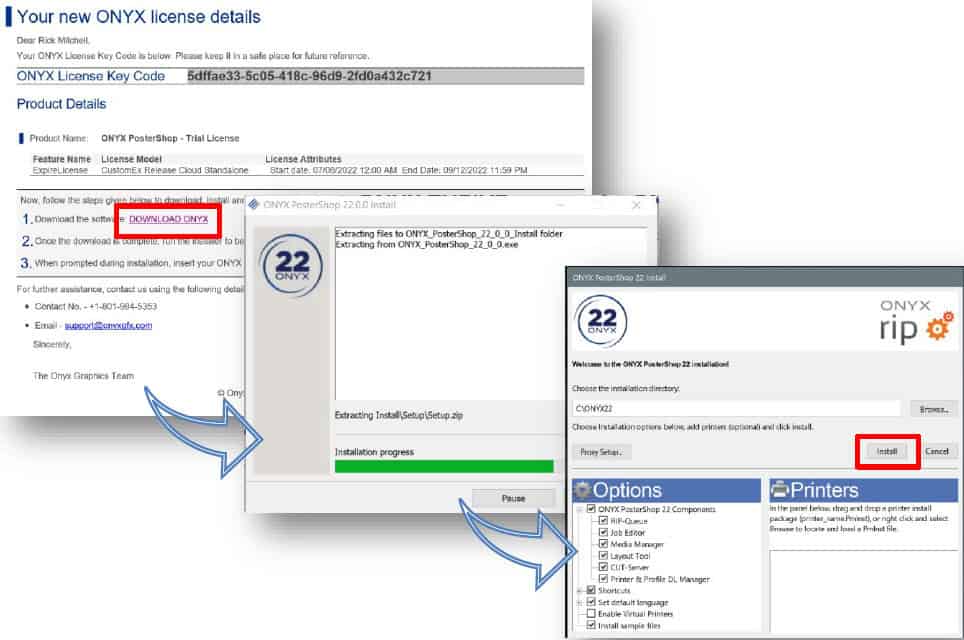
  • Once ONYX is installed, you will see a screen that prompts license activation.
  • At the activation screen, input the License Key Code received in the order confirmation email.
  • Select “Activate License” for installation to continue and finish.
  • The ONYX trial can now be launched and used.
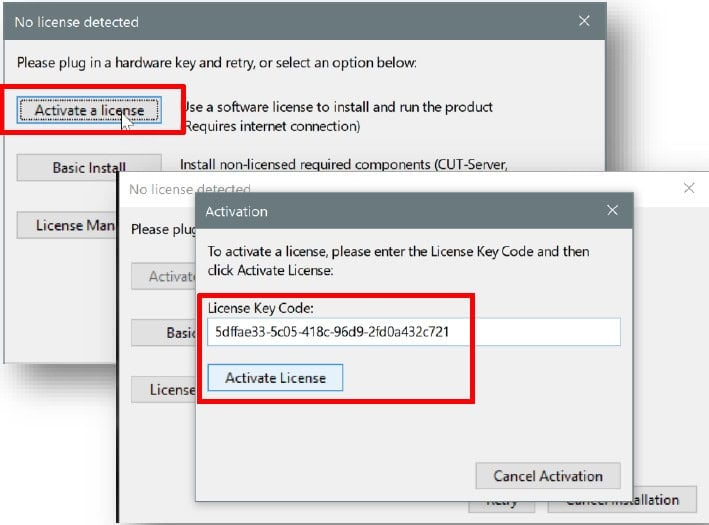
9. Managing a soft-license:

  • The License Manager shows product information.
  • The License manager is used to update a license for new product features, move a license between computers, or upgrade a trial to a full ONYX product at the end of the trial period.
  • To move a soft-license between computers, users can deactivate the license on one computer, then activate the same license on another computer in the License Manager.
  • For ONYX Thrive, the License Manager provides an additional option to choose which network license server to connect to.
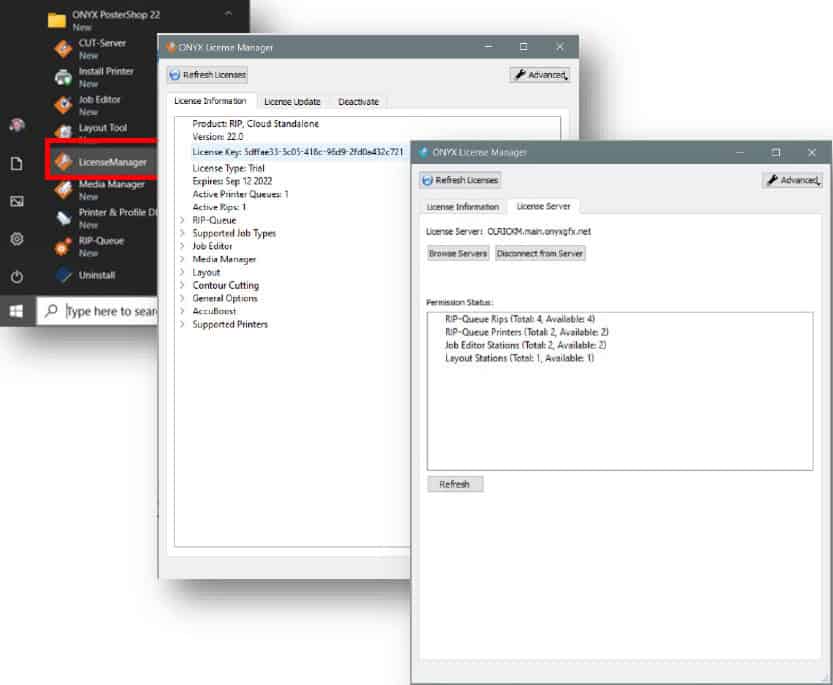
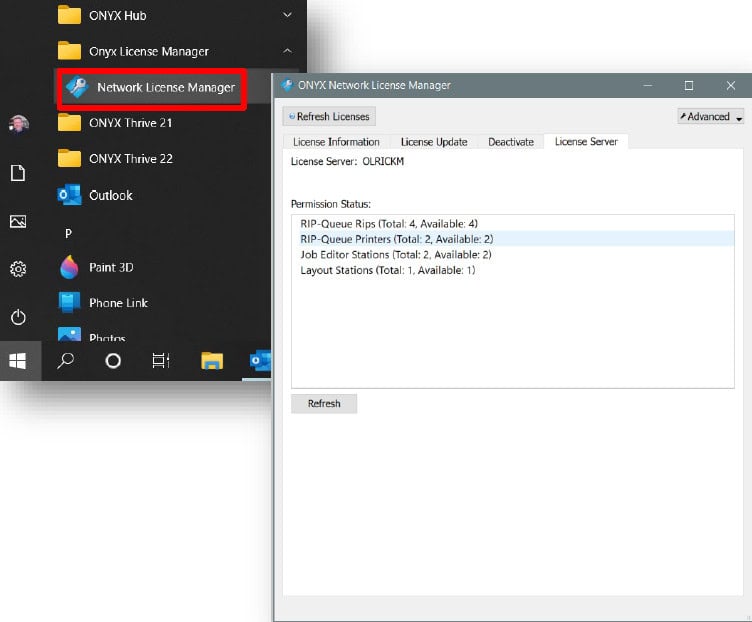
  • ONYX Thrive also includes a Network License Manager to manage connections to various workstations.
  • The License Manager on an individual station can connect to the Network License Manager.
  • The Network License Manager is where product information, product updates, and product upgrades are managed.
  • The Network License Manager also lists the permissions on the license, including RIPs, Printers, and Job Editors.
10. Product support for soft-licenses:

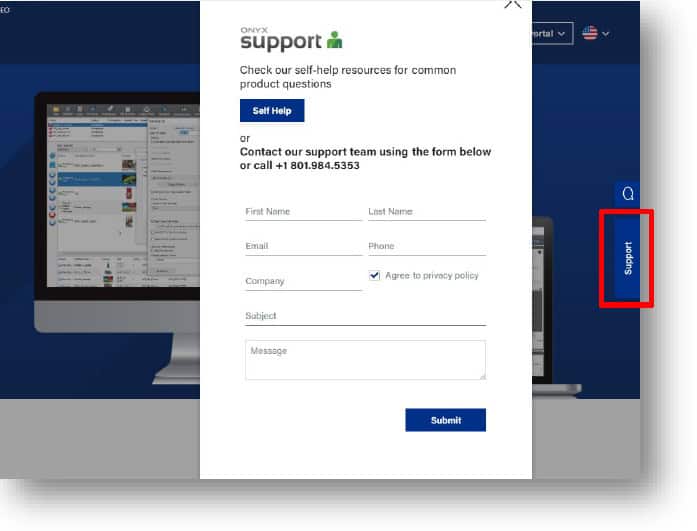
  • Technical support can also be reached at the Onyx Graphics website from the support button as shown.
  • Technical Support phone hours are:
    • Monday –Thursday 8am –4pm (MT)
    • Friday 8am –3pm (MT)
  • Regional support is also offered via email:
    • Americas: support@onyxgfx.com
    • Europe (EMEA) emeasupport@onyxgf.com
    • Asia Pacific asiasales@onyxgfx.com

Onyx Graphics logo featuring three diagonal blue lines to the left of the word "ONYX" in light gray text on a light background, representing expertise in printing and RIP software solutions.

オニキス・グラフィックス
6915サウス・ハイテク・ドライブ
ソルトレイクシティ, UT 84047

+1 801.568.9900
sales@onyxgfx.com

リセラーポータル
プライバシーポリシー
利用規約
限定保証

ウェブ・アクセシビリティ
ISL
支払センター
お問い合わせ


ダッシュコン

ダッシュ・フェイスブック・アルト

ダッシュアイコン-インスタグラム

このサイトは、reCAPTCHA と Googleプライバシーポリシー そして 利用規約 適用する

© 2026 Onyx Graphics, Inc.無断複写・転載を禁じます。デザイン タイニーフロッグ・テクノロジーズ

当社のウェブサイトでは、お客様の好みを記憶し、繰り返し訪問することで、最も適切なエクスペリエンスを提供するためにクッキーを使用しています。同意する」をクリックすると、すべてのクッキーの使用に同意したことになります。</br
私の個人情報を販売しないでください.
クッキー設定受け入れる
同意の管理

プライバシー

本ウェブサイトでは、お客様の利便性を向上させるためにクッキーを使用しています。このうち、必要なクッキーは、ウェブサイトの基本的な機能を動作させるために不可欠であるため、お客様のブラウザに保存されます。また、お客様が当ウェブサイトをどのように利用しているかを分析・理解するために、サードパーティのクッキーも使用しています。これらのクッキーは、お客様の同意がある場合にのみ、お客様のブラウザに保存されます。また、これらのクッキーをオプトアウトするオプションもあります。しかし、これらのクッキーの一部をオプトアウトすると、ブラウジング体験に影響を与える可能性があります。
必要
常に有効
必要なクッキーは、ウェブサイトが適切に機能するために絶対不可欠です。これらのクッキーは、匿名でウェブサイトの基本的な機能とセキュリティ機能を保証します。
クッキー期間説明
cookielawinfo-チェックボックス-アナリティクス11ヶ月このクッキーはGDPR Cookie Consentプラグインによって設定されます。このクッキーは、「アナリティクス」カテゴリのクッキーに対するユーザーの同意を保存するために使用されます。
cookielawinfo-チェックボックス-機能的11ヶ月クッキーはGDPRのクッキー同意によって設定され、カテゴリー「機能的」のクッキーに対するユーザーの同意を記録します。
cookielawinfo-チェックボックスが必要11ヶ月このクッキーはGDPR Cookie Consentプラグインによって設定されます。このクッキーは、「必要」のカテゴリーにあるクッキーに対するユーザーの同意を保存するために使用されます。
cookielawinfo-チェックボックス-その他11ヶ月このクッキーはGDPR Cookie Consentプラグインによって設定されます。このクッキーは、カテゴリー「その他」のクッキーに対するユーザーの同意を保存するために使用されます。
cookielawinfo-チェックボックスの性能11ヶ月このクッキーはGDPR Cookie Consentプラグインによって設定されます。このクッキーは、「パフォーマンス」カテゴリのクッキーに対するユーザーの同意を保存するために使用されます。
view_cookie_policy11ヶ月クッキーはGDPR Cookie Consentプラグインによって設定され、ユーザーがクッキーの使用に同意したかどうかを保存するために使用されます。個人データは保存されません。
機能的
機能的クッキーは、ウェブサイトのコンテンツをソーシャルメディアプラットフォームで共有したり、フィードバックを収集したり、その他のサードパーティの機能など、特定の機能を実行するのに役立ちます。
パフォーマンス
パフォーマンスクッキーは、ウェブサイトの主要なパフォーマンス指標を理解し分析するために使用され、訪問者により良いユーザー体験を提供するのに役立ちます。
アナリティクス
分析クッキーは、訪問者がウェブサイトとどのように相互作用するかを理解するために使用されます。これらのクッキーは、訪問者数、直帰率、トラフィックソースなどの指標に関する情報を提供するのに役立ちます。
広告
広告クッキーは、訪問者に適切な広告やマーケティングキャンペーンを提供するために使用されます。これらのクッキーは、ウェブサイト全体の訪問者を追跡し、カスタマイズされた広告を提供するための情報を収集します。
その他
その他の未分類のクッキーは、分析中で、まだカテゴリーに分類されていないものです。
保存して同意

購買情報同期


デモのリクエスト

ONYX Alignの詳細と印刷ビジネスにどのようなメリットがあるかについては、こちらをご覧ください、
下記のフォームをご利用ください。
デモのご予約はこちらから


ONYX RIPCenterを入手

トライアルまたは購入のお申し込みは、以下のフォームにご記入ください。
ONYXの担当者からご連絡いたします。
お客様のビジネスニーズについて


製品に関する一般的な質問については、セルフヘルプリソースをご覧ください。

ONYX サポートセンター


お探しのメーカーや機器が見つからない場合は、フォームにご記入の上、お知らせください。