TheONYX 支持中心is your central hub for support, knowledge base articles, and helpful resources. Use it to submitsupport requests,bug reports, andfeature requests, and to track your ticket history.
NOTE: If you have previously created a user in the previous version of myONYX, you will need to create a new account. This is required for new security measures we have put in place. If you select “Forgot Password” and you do not receive an email, you currently do not have an account in the new myONYX.
Account Setup
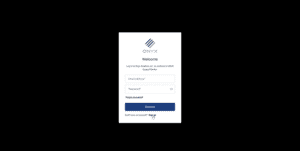
In your preferred web browser, navigate to:https://support.onyxgfx.com and select Sign Up at the bottom of the Welcome page.
Fill in the required fields including:
Email Address
Desired password
Select “Continue”
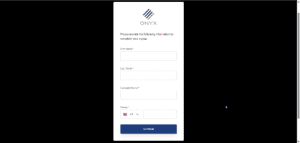
Enter the required fields including
Your First Name
Your Last Name
Your Company Name
Your Phone Number
Select “Continue”
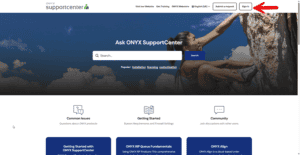
Once you have completed your registration, you’ll return to theONYX 支持中心. If your are not automatically signed in to SupportCenter, please sign in.
NOTE: You will receive an email after your registration to verify your new myONYX account. It is very important to verify your registered email. Failure to do so will not allow for technical support to respond to your requests. This is part of our new security measures to ensure that your account is safe.
Submit a Request
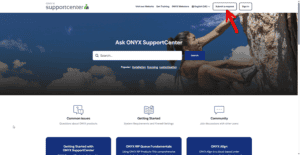
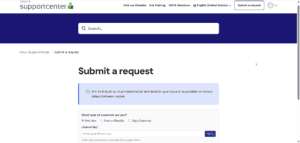
To submit asupport request,bug report, orfeature request, selectSubmit a requestin the top-right corner of the SupportCenter.
SelectSubmit a request.
Choose the appropriate request type.
Fill out the form with as much detail as possible, then submit.
CC option:You can Carbon Copy (CC) additional email addresses on a submission. This is helpful forresellerswho want to includeend usersin ticket updates.
View and Manage Your Requests
After submitting a ticket, you can view your ticket history and manage open requests from your account menu.
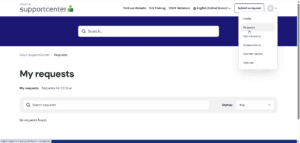
Open the account drop-down menu (top-right).
SelectRequests.
View the status and contents of any previously submitted tickets.
FromRequests, you can review ticket status, read prior updates, and respond to keep work moving.