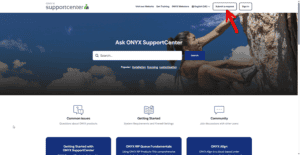
TheCentre de support ONYXis your central hub for support, knowledge base articles, and helpful resources. Use it to submitsupport requests,bug reports, andfeature requests, and to track your ticket history.
NOTE: If you have previously created a user in the previous version of myONYX, you will need to create a new account. This is required for new security measures we have put in place. If you select “Forgot Password” and you do not receive an email, you currently do not have an account in the new myONYX.
Account Setup
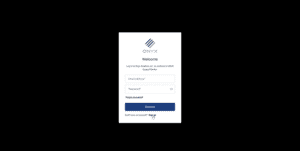
In your preferred web browser, navigate to:https://support.onyxgfx.com and select Sign Up at the bottom of the Welcome page.
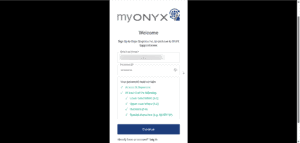
Fill in the required fields including:
Email Address
Desired password
Select “Continue”
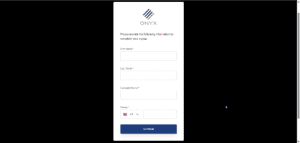
Enter the required fields including
Your First Name
Your Last Name
Your Company Name
Your Phone Number
Select “Continue”
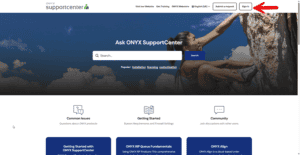
Once you have completed your registration, you’ll return to theCentre de support ONYX. If your are not automatically signed in to SupportCenter, please sign in.
NOTE: You will receive an email after your registration to verify your new myONYX account. It is very important to verify your registered email. Failure to do so will not allow for technical support to respond to your requests. This is part of our new security measures to ensure that your account is safe.
Submit a Request
To submit asupport request,bug report, orfeature request, selectSubmit a requestin the top-right corner of the SupportCenter.
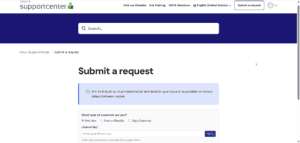
SelectSubmit a request.
Choose the appropriate request type.
Fill out the form with as much detail as possible, then submit.
CC option:You can Carbon Copy (CC) additional email addresses on a submission. This is helpful forresellerswho want to includeend usersin ticket updates.
View and Manage Your Requests
After submitting a ticket, you can view your ticket history and manage open requests from your account menu.
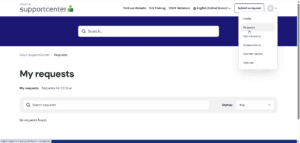
Open the account drop-down menu (top-right).
SelectRequests.
View the status and contents of any previously submitted tickets.
FromRequests, you can review ticket status, read prior updates, and respond to keep work moving.
Nous utilisons des cookies sur notre site web pour vous offrir l'expérience la plus pertinente en mémorisant vos préférences et vos visites répétées. En cliquant sur "Accepter", vous consentez à l'utilisation de TOUS les cookies.
Ce site web utilise des cookies pour améliorer votre expérience lorsque vous naviguez sur le site. Parmi ces cookies, ceux qui sont considérés comme nécessaires sont stockés sur votre navigateur, car ils sont essentiels au fonctionnement des fonctionnalités de base du site web. Nous utilisons également des cookies de tiers qui nous aident à analyser et à comprendre la manière dont vous utilisez ce site web. Ces cookies ne seront stockés dans votre navigateur qu'avec votre consentement. Vous avez également la possibilité de refuser ces cookies. Cependant, la désactivation de certains de ces cookies peut affecter votre expérience de navigation.
Les cookies nécessaires sont absolument indispensables au bon fonctionnement du site web. Ces cookies assurent les fonctionnalités de base et les caractéristiques de sécurité du site web, de manière anonyme.
Cookie
Durée
Description
cookielawinfo-checkbox-analytics
11 mois
Ce cookie est défini par le plugin GDPR Cookie Consent. Le cookie est utilisé pour stocker le consentement de l'utilisateur pour les cookies de la catégorie "Analytics".
cookielawinfo-checkbox-fonctionnel
11 mois
Le cookie est défini par le GDPR cookie consent pour enregistrer le consentement de l'utilisateur pour les cookies de la catégorie "Fonctionnel".
case à cocher nécessaire pour le droit de la concurrence
11 mois
Ce cookie est défini par le plugin GDPR Cookie Consent. Il est utilisé pour stocker le consentement de l'utilisateur pour les cookies de la catégorie "Nécessaire".
cookielawinfo-checkbox-autres
11 mois
Ce cookie est défini par le plugin GDPR Cookie Consent. Ce cookie est utilisé pour stocker le consentement de l'utilisateur pour les cookies de la catégorie "Autres".
cookielawinfo-checkbox-performance
11 mois
Ce cookie est défini par le plugin GDPR Cookie Consent. Ce cookie est utilisé pour stocker le consentement de l'utilisateur pour les cookies de la catégorie "Performance".
politique_cookie_vu
11 mois
Le cookie est défini par le plugin GDPR Cookie Consent et est utilisé pour enregistrer si l'utilisateur a consenti ou non à l'utilisation de cookies. Il ne stocke aucune donnée personnelle.
Les cookies fonctionnels permettent de réaliser certaines fonctionnalités telles que le partage du contenu du site web sur des plateformes de médias sociaux, la collecte de commentaires et d'autres fonctions de tiers.
Les cookies de performance sont utilisés pour comprendre et analyser les principaux indices de performance du site web, ce qui permet d'offrir une meilleure expérience utilisateur aux visiteurs.
Les cookies analytiques sont utilisés pour comprendre comment les visiteurs interagissent avec le site web. Ces cookies fournissent des informations sur le nombre de visiteurs, le taux de rebond, la source du trafic, etc.
Les cookies publicitaires sont utilisés pour fournir aux visiteurs des publicités et des campagnes de marketing pertinentes. Ces cookies suivent les visiteurs à travers les sites web et collectent des informations pour fournir des publicités personnalisées.
Les autres cookies non classés sont ceux qui sont en cours d'analyse et qui n'ont pas encore été classés dans une catégorie.
Synchronisation des informations sur les achats
Demander une démonstration
Pour en savoir plus sur ONYX Align et sur les avantages qu'il peut apporter à votre entreprise d'impression,
utilisez le formulaire ci-dessous et un représentant d'ONYX
vous contacter pour planifier une démonstration
Obtenir ONYX RIPCenter
Pour demander un essai ou pour acheter, il suffit de remplir le formulaire.
et un représentant d'ONYX vous contactera
sur les besoins de votre entreprise.
Consultez nos ressources d'auto-assistance pour les questions courantes sur les produits.